Every fifteen minutes or so, I have my desktop wallpaper changing to a fresh satellite image of Earth. Sometimes it shows Africa and Europe from the Meteosat satellite. Sometimes it shifts to the Pacific and Australasia, seen from Japan’s Himawari-9. Both are near real-time images from geostationary satellites orbiting above the equator.
Here is how to cook it up on Debian 13 (Trixie) with KDE Plasma 6 on Wayland.
Ingrediants
Debian 13 (Trixie) with KDE Plasma 6, running a Wayland session
Himawaripy: a Python tool that downloads the latest image from Japan’s Himawari-9 weather satellite, centred over the Pacific. It saves a timestamped PNG to a local folder.
The project is no longer maintained but continues to work just fine. I installed it viapipxrather thanaptbecause it is not packaged in Debian, and requiressetuptoolsto be manually injected as a dependency after installation.A custom shell script to download the latest natural colour image from EUMETSAT’s Meteosat satellite, centred over Africa and Europe. No account or API key required.
Variety: a wallpaper manager that rotates through images in a local folder on a schedule, calling a custom script to apply each one.
plasma-apply-wallpaperimage: the tool I use for changing wallpapers on KDE Plasma 6 with Wayland. The older
qdbus/dbus-sendapproach used in other guides does not work on Wayland.
Method
Step 1: Install pipx and Himawaripy
1sudo apt install pipx
2pipx ensurepath
and then:
1pipx install himawaripy
2pipx inject himawaripy setuptools
Himawaripy was written to download imagery from the Himawari-8 satellite. Himawari-9 replaced Himawari-8 as the operational satellite but uses an identical data format and feed structure, so Himawaripy continues to work without modification.
Step 2: Create the Image Folders
1mkdir -p ~/.himawari ~/.eumetsat ~/.satellite-wallpapers
2ln -s ~/.himawari ~/.satellite-wallpapers/himawari
3ln -s ~/.eumetsat ~/.satellite-wallpapers/eumetsat
Step 3: Create the EUMETSAT Download Script
 1cat > ~/.local/bin/eumetsat-download << 'EOF'
 2#!/bin/bash
 3OUTDIR="$HOME/.eumetsat"
 4TIMESTAMP=$(date -u +"%Y%m%dT%H%M00")
 5OUTFILE="$OUTDIR/meteosat-${TIMESTAMP}.jpg"
 6if [ ! -f "$OUTFILE" ]; then
 7    curl -sf "https://eumetview.eumetsat.int/static-images/latestImages/EUMETSAT_MSG_RGBNatColour_FullResolution.jpg" \
 8        -o "$OUTFILE" && echo "Downloaded: $OUTFILE"
 9    ls -t "$OUTDIR"/meteosat-*.jpg | tail -n +7 | xargs -r rm
10fi
11EOF
12chmod +x ~/.local/bin/eumetsat-download
The script adds a UTC timestamp to each filename so Variety and plasma-apply-wallpaperimage always recognise it as a new image. It also keeps only the six most recent images to save disk space.
Step 4: Test Both Sources
1himawaripy --auto-offset -l 4 --dont-change --output-dir ~/.himawari
2eumetsat-download
3ls ~/.himawari ~/.eumetsat
Each folder should now contain one timestamped image.
Step 5: Set Up Cron Jobs
1crontab -eAdd both lines:
*/10 * * * * /home/YOUR_USERNAME/.local/bin/himawaripy --auto-offset -l 4 --dont-change --output-dir /home/YOUR_USERNAME/.himawari
*/15 * * * * /home/YOUR_USERNAME/.local/bin/eumetsat-download
The --auto-offset flag automatically calculates the correct time offset for the satellite feed, and -l 4 sets the resolution level with level 4 being the highest available.
The --dont-change flag tells Himawaripy to download the image without trying to change the wallpaper itself, leaving that to Variety and the shell script.
Himawari-9 updates every 10 minutes; Meteosat updates every 15 minutes.
Step 6: Install Variety and Create the Wallpaper Script
1sudo apt install variety
2mkdir -p ~/.config/variety/scripts
3cat > ~/.config/variety/scripts/set_wallpaper << 'EOF'
4#!/bin/bash
5echo "$(date) set_wallpaper called with: $1" >> /tmp/variety_wallpaper.log
6plasma-apply-wallpaperimage --fill-mode preserveAspectFit "$1" >> /tmp/variety_wallpaper.log 2>&1
7EOF
8chmod +x ~/.config/variety/scripts/set_wallpaper
The --fill-mode preserveAspectFit flag ensures the full Earth image is always visible against the black of space, rather than being cropped to fill the screen.
Step 7: Configure Variety
Open Variety preferences from the system tray:
- Sources tab: Add
~/.satellite-wallpapersas a Local Folder, remove all other sources - General tab: Set the change interval to 16 minutes
Step 8: Set the KDE Fill Mode
Right-click the desktop → Configure Desktop and Wallpaper → set Positioning to Scaled, Keep Proportions → Apply.
Step 9: Test
1variety --next
2cat /tmp/variety_wallpaper.log
You should see a line ending in Successfully set the wallpaper for all desktops.
How It Looks
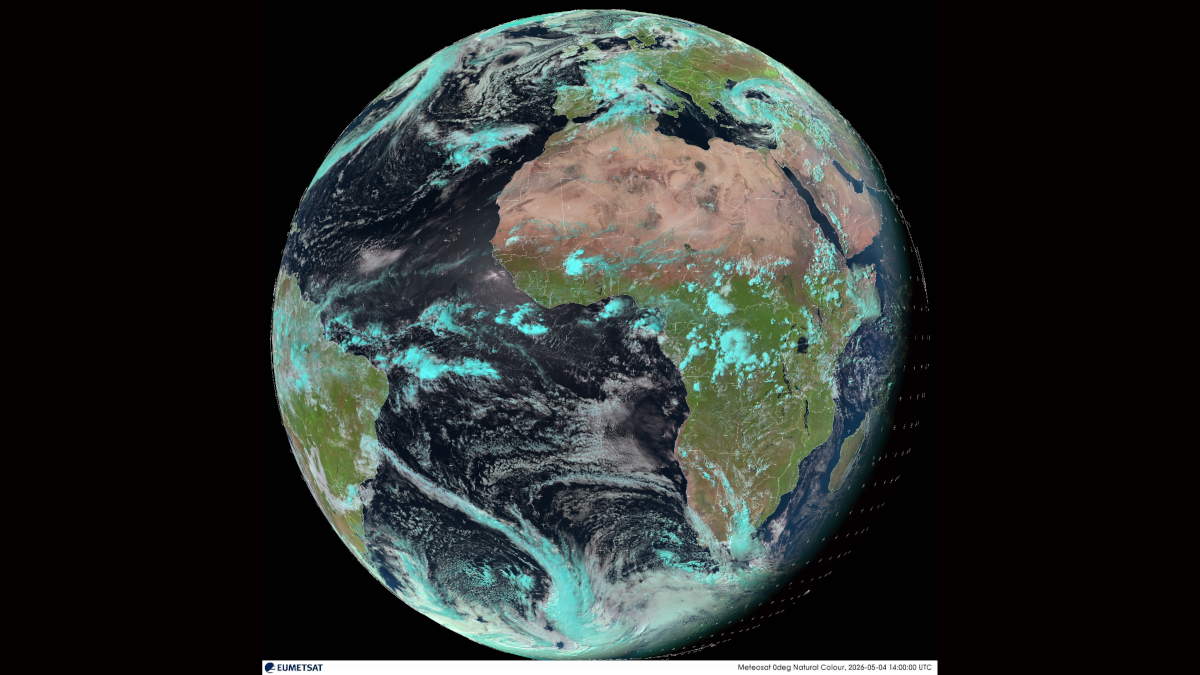
Both images update throughout the day and the wallpaper should alternate between two perspectives of Earth. Meteosat shows Europe, Africa, and the Atlantic.
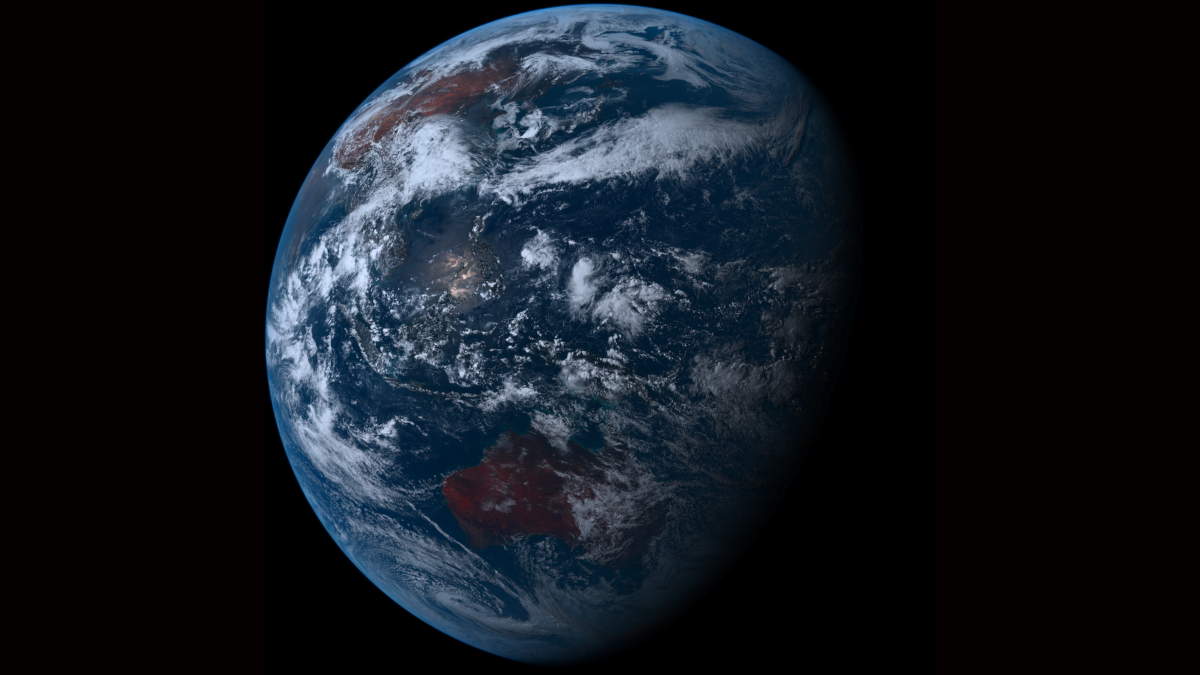
Himawari-9 shows the Pacific, Japan, Australia, and Southeast Asia.
💬 Any thoughts? I’d be happy to hear from you via LetterBird. 💬